Press S for the shortcut bar, F to fit the model on screen, Spacebar for view orientation, Ctrl+S to save and Ctrl+B to rebuild changed features. To assign your own keys, open a document and go to Tools > Customize > Keyboard. That tab also prints or copies the shortcuts saved in your installation.
I'd learn S, F and Ctrl+B first: they cover finding a tool, recovering the view and updating the part after a change. The reference below covers SOLIDWORKS Design 2026 on Windows; a key you or an administrator reassigned will follow that saved assignment.
Shortcuts from the first sketch to the drawing
These defaults come from the selected keyboard shortcuts in SOLIDWORKS Help and the command pages linked below. Keep the document context in mind: Tab changes planes in a 3D sketch but hides components in an assembly.
| Task | Keys | Action or condition |
|---|---|---|
| Open recent work | R | Browse Recent Documents |
| Switch documents | Ctrl+Tab | Move among open documents |
| Save | Ctrl+S | Save the active document |
| Close | Ctrl+W | Close the active document |
| Sketch relations | Hold Ctrl while sketching | Temporarily turn off automatic relations |
| 3D sketch plane | Tab | Change the XYZ plane |
| Multiple selections | Ctrl+click | Select multiple entities |
| Select all | Ctrl+A | In a part, respects active filters; in an assembly, selects components |
| Selection filters | E / X / V | Filter edges / faces / vertices |
| Filter toolbar | F5 | Show or hide the toolbar |
| Filter state | F6 | Turn selected filters on or off |
| Rotate the view | Arrow keys | Rotate a part or assembly view |
| Rotate by a quarter-turn | Shift+arrow keys | Rotate the view in 90° increments |
| Roll the view | Alt+arrow keys | Rotate parallel to the viewing plane |
| Pan | Ctrl+arrow keys | Move the view across the window |
| Fit / zoom | F / Z / Shift+Z | Fit / zoom out / zoom in |
| View orientation | Spacebar | Open View Selector and Orientation |
| View Selector alone | Ctrl+Spacebar | Open View Selector |
| Repeat a command | Enter | Repeat the last command |
| Tools near the pointer | S | Open the shortcut bar for the current mode |
| Rebuild | Ctrl+B | Rebuild changed features |
| Refresh the display | Ctrl+R | Redraw the screen |
| Undo / redo | Ctrl+Z / Ctrl+Y | Reverse an action / reverse an undo, when available |
| Copy / paste | Ctrl+C / Ctrl+V | Copy selected items / paste at a suitable destination |
| Assembly visibility | Tab / Shift+Tab | Hide / show components beneath the pointer |
| Component insertion | Tab / Shift+Tab | Rotate the component 90° / −90° while inserting it |
| Drawing dimension | Shift+drag | Move a dimension to another drawing view |
Ctrl+S saves the document; a new document opens Save As so you can name it. For copy and paste, select the destination the copied item needs, such as a face or plane for a sketch. If a text field has focus, ordinary letters enter text. Finish the entry and return focus to the graphics area before a modeling shortcut.
Use F5 and F6 when selection stops behaving
If a click will catch an edge but refuses a face, check the filters before changing the model. F5 controls toolbar visibility; F6 controls the selected filters. Hiding the toolbar doesn't turn the filters off.
Press F5 to inspect the Selection Filter toolbar, then F6 to toggle its selected filters. For a clean filter selection, click Clear All Filters. F6 preserves the choices so you can enable them again; Clear All Filters removes those choices. E, X and V are useful when you deliberately want edges, faces or vertices, but accidental presses can make the next selection seem broken.

Ctrl+A runs Select All. It doesn't create an assembly. In a part, an active face filter also limits Select All to faces, which explains why selecting everything can still leave other entity types untouched.
Separate view changes from model changes
The arrow keys rotate the view; a middle-button drag does the same job. Shift makes the keyboard rotation a 90° step. Alt+arrow keys roll the view parallel to the screen. None of these changes a component's mates or its position inside the assembly.
Spacebar is the useful fallback when a remembered view key doesn't work: it opens View Selector and Orientation. For Ctrl+7 and Ctrl+8, check Isometric and Normal To in Tools > Customize > Keyboard, using Search for or the Others category. A 2009 SOLIDWORKS view-navigation article lists Ctrl+1 through Ctrl+7 as Front, Back, Left, Right, Top, Bottom and Isometric, with Ctrl+8 for Normal To. Read the current Shortcut(s) cells before relying on that older mapping.
Ctrl+R only redraws the display. After changing a driving dimension, Ctrl+B updates changed features. The rebuild commands give Ctrl+Q a wider scope in a part, rebuilding all features, but in an assembly it force-rebuilds the top level. For all configurations, Ctrl+Shift+B rebuilds changed features and Ctrl+Shift+Q force-rebuilds all features in parts, assemblies and sketches. In a drawing, Ctrl+Shift+Q force-rebuilds all drawing views. Forced rebuilds can take longer, so Ctrl+B is the starting point.
Make the S bar fit the work
S opens a separate shortcut bar for Part, Assembly, Drawing or Sketch mode. A sketching tool added to one bar doesn't automatically fill the others.
For a quick addition, press S, type the tool name in Search All Commands, select the tool and click Insert Command. With the bar open, arrow keys move between tools, Alt+Down opens a selected tool's menu if it has one, Enter runs it and Esc dismisses the bar or menu.
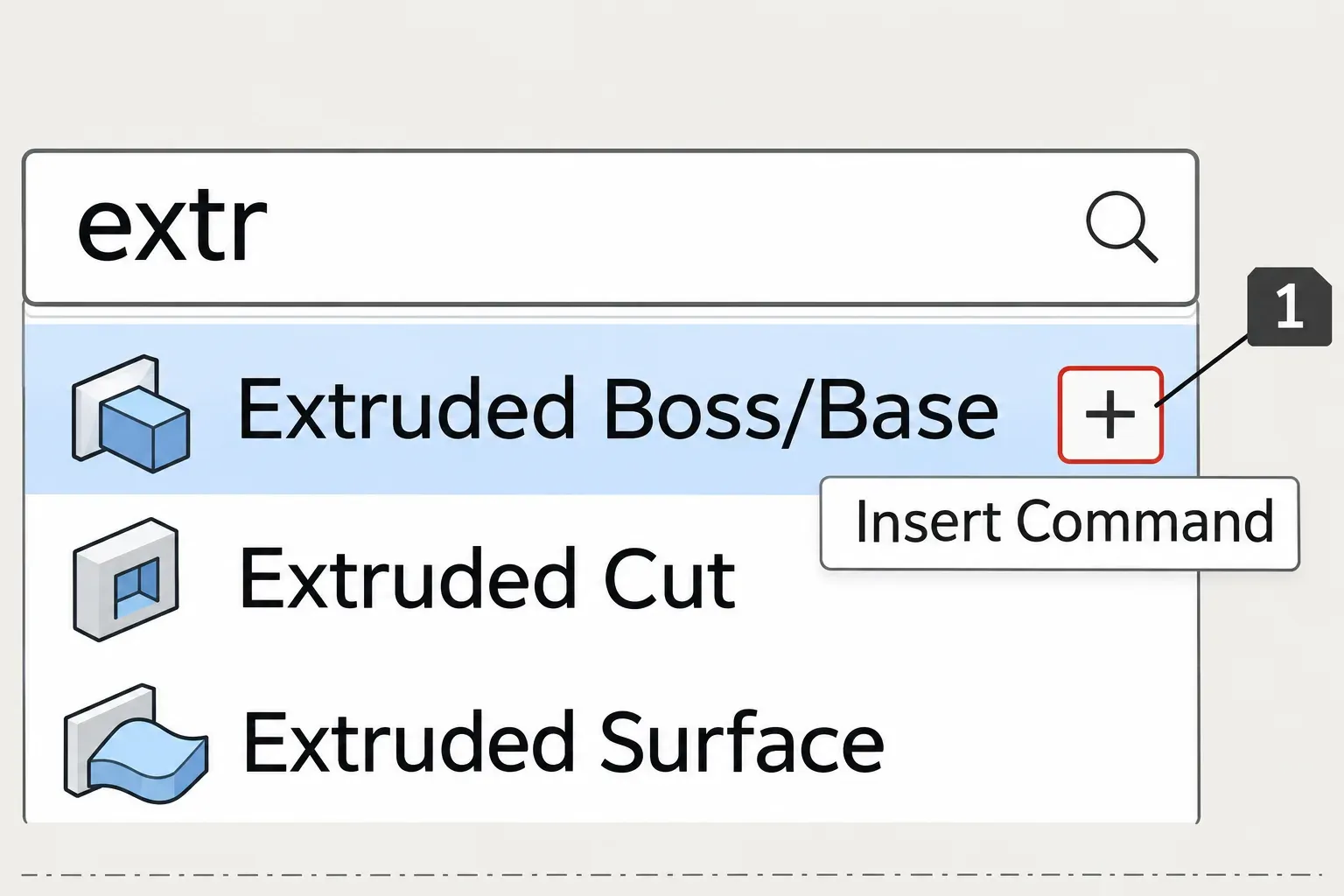
- With a document open, click Tools > Customize > Shortcut Bars.
- Select the bar to customize. Under Toolbar, select a command group or search for a command.
- Drag the command onto the bar. While Customize remains open, drag a tool off the bar to remove it or drag the bar's edge to resize it.
- Click OK, then press S in the corresponding mode to check the result.
To change the S assignment, switch to the Keyboard tab, find Shortcut Bar and change Shortcut(s). Keep commands you use in every document on memorable keys; a mode-specific tool can stay on its S bar.
Assign a key without losing another command
Open a document, then click Tools > Customize > Keyboard. Category narrows the list; Search for filters the Command column as you type.
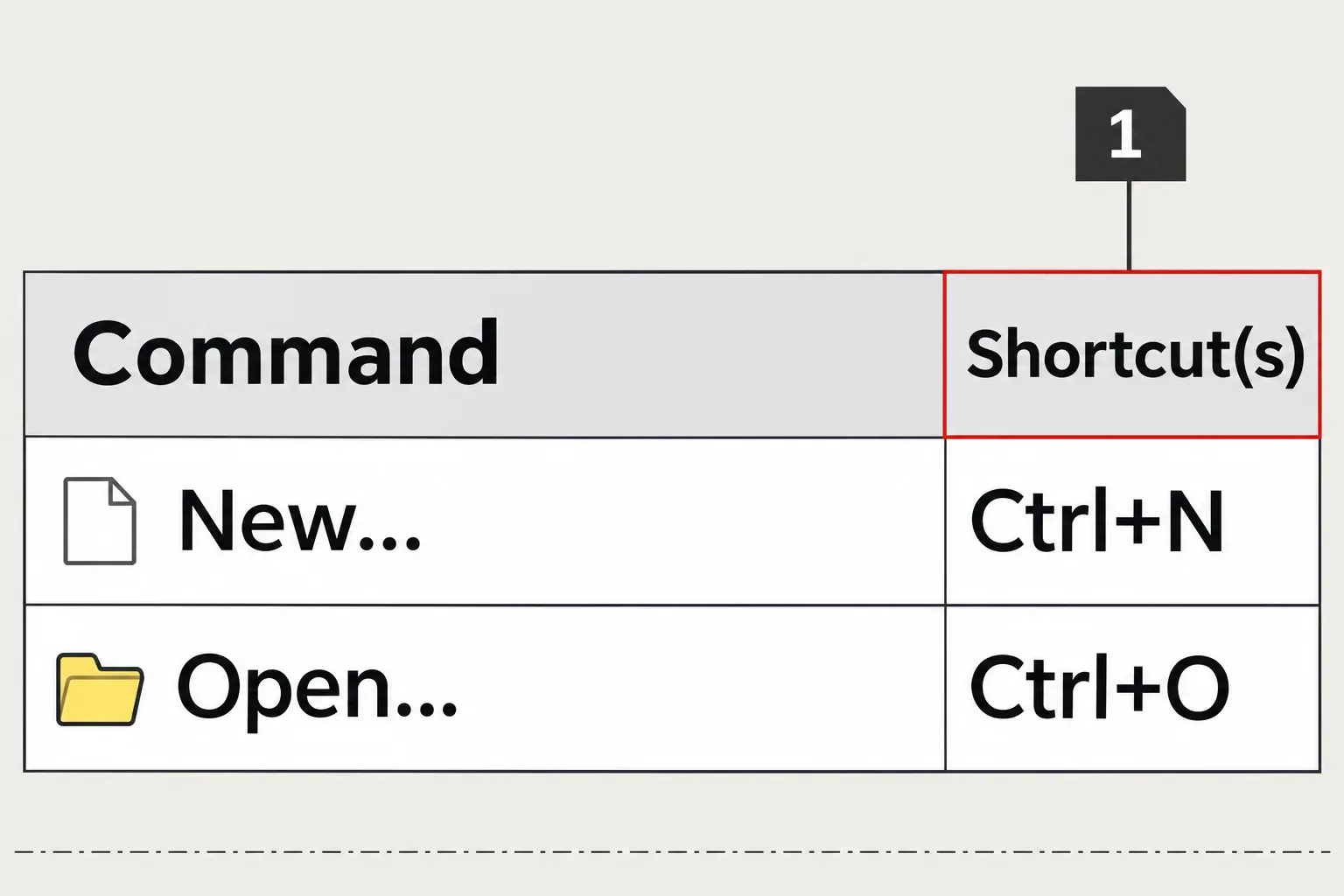
- Find and select the command. Read its current Shortcut(s) before changing it.
- Press the desired key or combination.
- If SOLIDWORKS reports that the key is already assigned, decide whether to transfer it. Accepting the reassignment removes that shortcut from the old command.
- Click OK, return to the graphics area and check the command in the document context where you'll use it.
Letters appear in uppercase, but Caps Lock doesn't imply Shift or change shortcut behavior. A custom M for Measure is your assignment; another installation may have a different one. Menu access keys, the underlined letters shown with Alt, can't be customized this way.
For one unwanted assignment, select it and use Remove Shortcut. Save a settings backup before a broad reset: Reset to Defaults can reset keyboard shortcuts or all customizations on all tabs. Choose the scope deliberately, since the broader option also discards changes outside the keyboard list.
Print your actual list and carry it to another computer
On the Keyboard tab, set Category and Show for the list you need. Print List prints the selected list with Category, Command and Shortcut(s) columns; Copy List puts it on the clipboard for Word or Excel. This is the sheet to keep after customizing, because a generic default table can't show your changes.
To move those assignments, use the SOLIDWORKS Settings Wizard through Tools > Save/Restore Settings. Choose Save Settings, select Keyboard shortcuts and save the file; include Mouse gestures if you want those too. On the destination computer, use Restore Settings, select the saved file and the settings to restore, and finish for the current user. Make a backup of the destination settings first, then use Copy List on each computer to compare the command/key rows. Network-computer and roaming-profile restoration belongs to an administrator.
Add mouse gestures when a right-drag is easier
Mouse gestures launch a tool or macro by right-dragging through its region in the graphics-area guide. Tools > Customize > Mouse Gestures lets you enable them, choose 2, 3, 4, 8 or 12 gestures, and drag commands onto the guides. Four gestures are enabled by default. Release inside the guide to cancel; pass through the tool region before releasing to run it.
In an assembly, right-drag away from components or use Alt+right-drag to summon gestures, because a plain right-drag on a component rotates it. When the task is to reposition that component rather than change the camera view, continue with rotating parts and the view.